TraitWare Windows Passwordless MFA Agent Installer Guide
Deployment Key Installation (Manual & Microsoft Intune)
Note: This is currently in Beta. Reach out to contact@traitware.com if you are interested in being screened as a candidate for use.
Overview
This guide covers installing the TraitWare Windows Passwordless MFA agent using a Deployment Key. A deployment key enables device provisioning and optional user registration during installation.
All command-line options and examples in this document assume a deployment key is being used.
Note: Installing TraitWare without a deployment key (install-only scenarios) is covered in a separate document. See: Install TraitWare Passwordless Agent - User Registration Code.
TABLE OF CONTENTS
- TraitWare Windows Passwordless MFA Agent Installer Guide
- Overview
- Download the Intunewin Installer
- Download the MSI Installer
- Installation Modes
- Create Deployment Key (TraitWare Console)
- Name the deployment, select a seat limit, and set the preferred expiration date
- Manual Installation (Command Line)
- Installer Parameters
- User Information
- Local User Options
- Example Commands
- Microsoft Intune Deployment (Intune Console)
- Deployment and Sync
- Bulk Device Sync
- Single Device Sync
Download the Intunewin Installer
The Intunewin installer can be used to deploy the TraitWare Passwordless Agent to Windows machines via Intune.
Click here to download the Intunewin installer file: TraitWareInstaller_2_1_0.intunewin
Download the MSI Installer
The MSI installer can be used to deploy the TraitWare Passwordless Agent via CLI or manually on Windows devices.
Click here to download the MSI installer file: TraitWareInstaller_2_1_0.msi
Installation Modes
When using a deployment key, the installer supports the following modes:
Provision only – Provisions the device
Provision + user registration – Provisions the device and registers a user
Installer behavior is determined entirely by the parameters provided.
Create Deployment Key (TraitWare Console)
The first step in a remote deployment is to create a Deployment Key. This is used in remote install scripts to automatically register the TraitWare Windows Passwordless MFA agent.
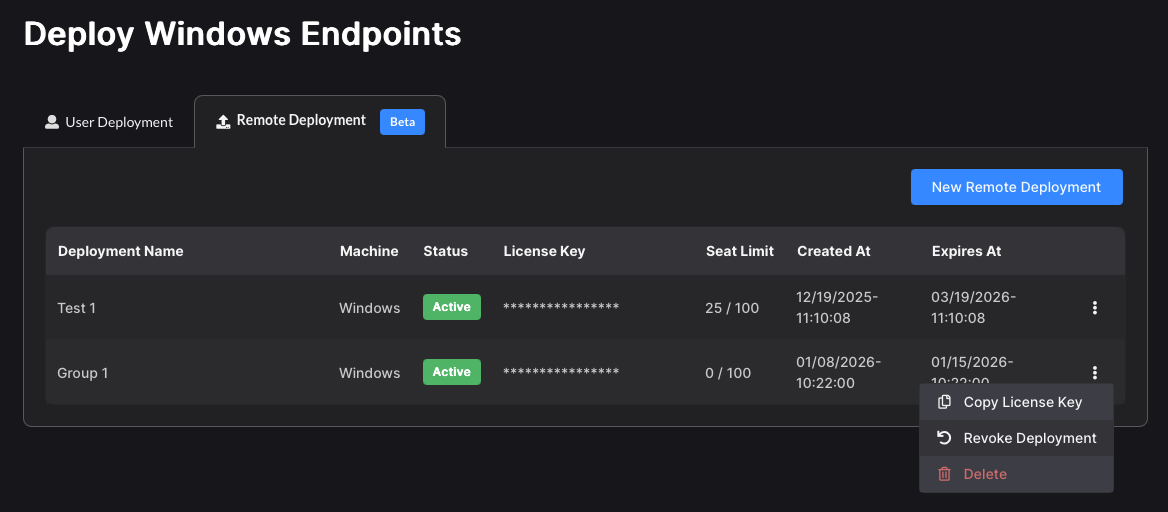
In the TraitWare Admin Console, navigate to Deploy Endpoints
Select the Remote Deployment tab
Click New Remote Deployment
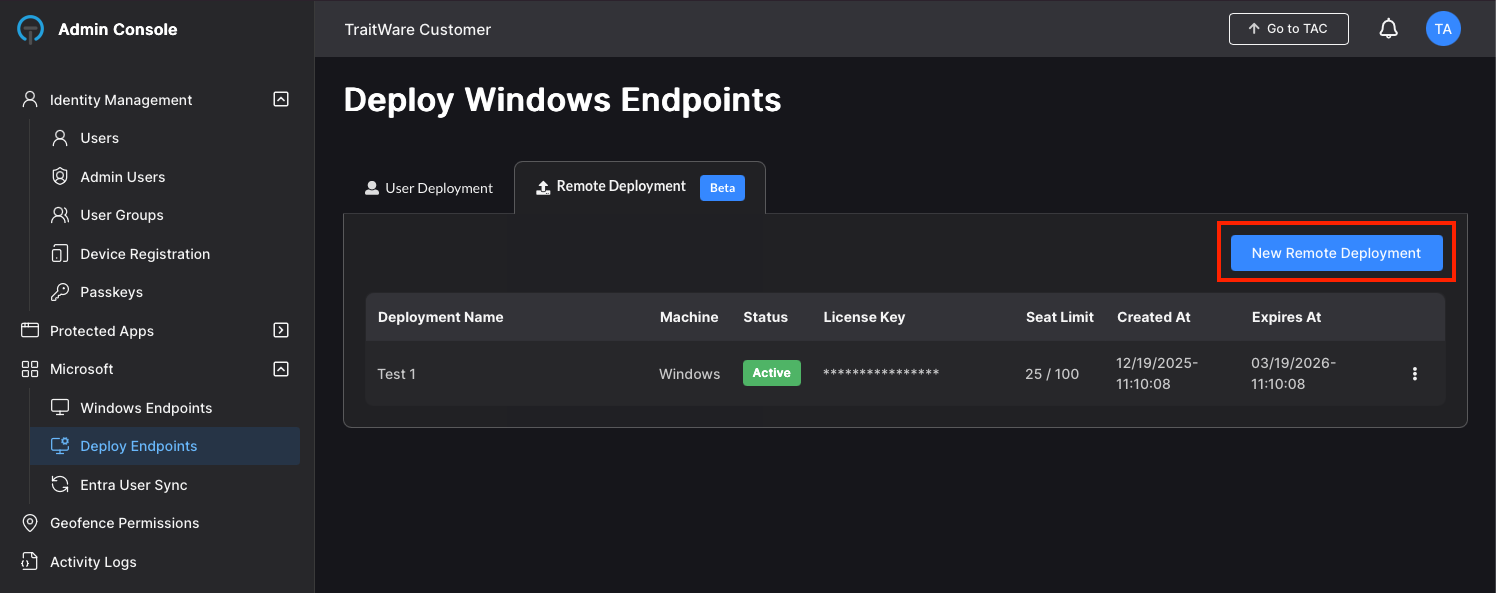
Name the deployment, select a seat limit, and set the preferred expiration date
Click Submit
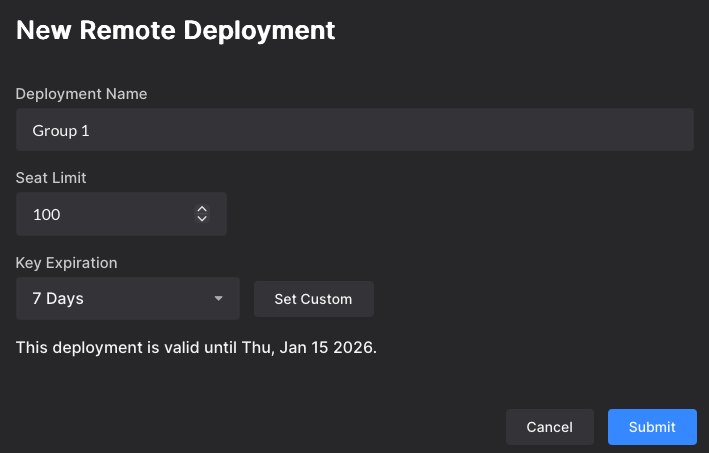
The key can be copied now or later for use in the deployment steps
Click Done
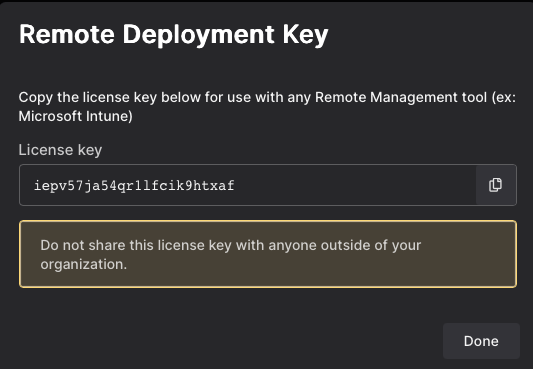
The Deployment Key is available to use
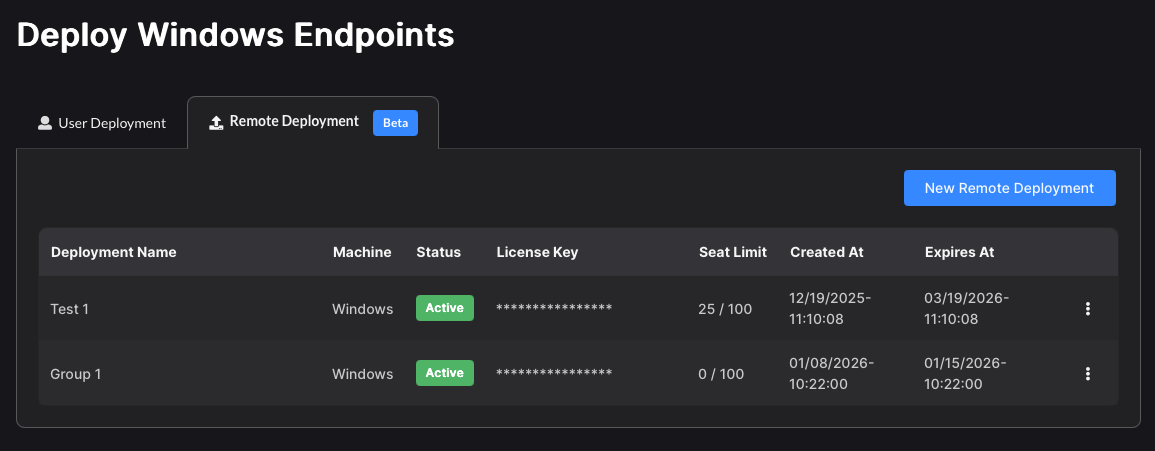
Additional options are available after creating the deployment key (Copy/Reovke/Delete)
Manual Installation (Command Line)
Installer Rules
DEPLOYMENTKEYonly → Provision deviceDEPLOYMENTKEY+ user info → Provision device and register userNo
DEPLOYMENTKEY→ Not covered in this guide
Installer Parameters
Provisioning
DEPLOYMENTKEY
Required to provision a device.
User Information
USERDOMAINlocal→ when adding a local Windows userEntraID→ when adding a Microsoft Entra ID user
USEREMAIL
TraitWare user email
(Must match the Entra ID email when usingUSERDOMAIN=EntraID)USERNAME
Local Windows username (required forUSERDOMAIN=local)USERPASSWORD
Required for Entra ID users
Optional for some local-user flows
Local User Options
(Only applicable when USERDOMAIN=local)
CREATELOCALUSER=true
Creates the local user if it does not existPassword is automatically generated
AUTOGENERATEPASSWORD=true
Validates the existing password and sets a new random passwordFORCERESETPASSWORD=true
Resets the local password without validating the old password
(Only used whenAUTOGENERATEPASSWORDis not explicitly set tofalse)No password flags
Requires the current password and does not change it
Example Commands
Replace placeholder values (< >) with real values.
Note: Make sure the .msi file name listed in the script is the same version used on the .intunewin installer being used. It is correct to name the .msi file in the script as in the examples. Do NOT rename this to the .intunewin filename.
It will always have the form: TraitWareInstaller_x_x_x.msi where x is replaced with the version number on the TraitWareInstaller_x_x_x.intunewin file.
Provision Device Only
msiexec /i "TraitWareInstaller_2_1_0.msi" /qn /norestart DEPLOYMENTKEY=<deployment-key>Provision + Entra ID User
msiexec /i "TraitWareInstaller_2_1_0.msi" /qn /norestart DEPLOYMENTKEY=<deployment-key> USERDOMAIN=EntraID USEREMAIL=<user-email> USERPASSWORD=<user-password>Provision + Local User (Create if Missing)
msiexec /i "TraitWareInstaller_2_1_0.msi" /qn /norestart DEPLOYMENTKEY=<deployment-key> USERDOMAIN=local USEREMAIL=<user-email> USERNAME=<local-username> CREATELOCALUSER=trueProvision + Local User (Use Existing Password)
msiexec /i "TraitWareInstaller_2_1_0.msi" /qn /norestart DEPLOYMENTKEY=<deployment-key> USERDOMAIN=local USEREMAIL=<user-email> USERNAME=<local-username> USERPASSWORD=<current-password>Provision + Local User (Force Password Reset)
msiexec /i "TraitWareInstaller_2_1_0.msi" /qn /norestart DEPLOYMENTKEY=<deployment-key> USERDOMAIN=local USEREMAIL=<user-email> USERNAME=<local-username> FORCERESETPASSWORD=trueMicrosoft Intune Deployment (Intune Console)
Create the Application
Open Intune Admin Center
Go to Apps → Windows
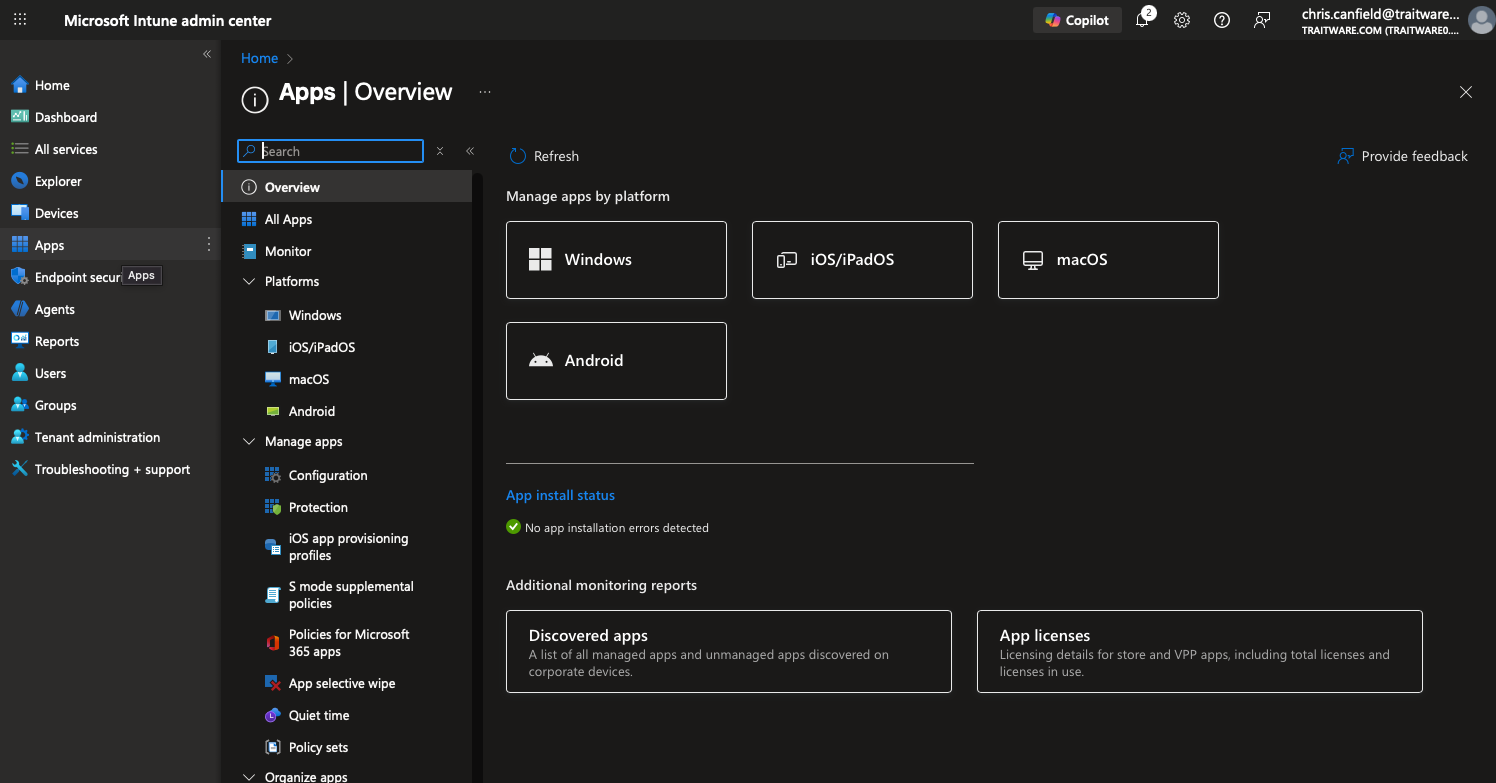
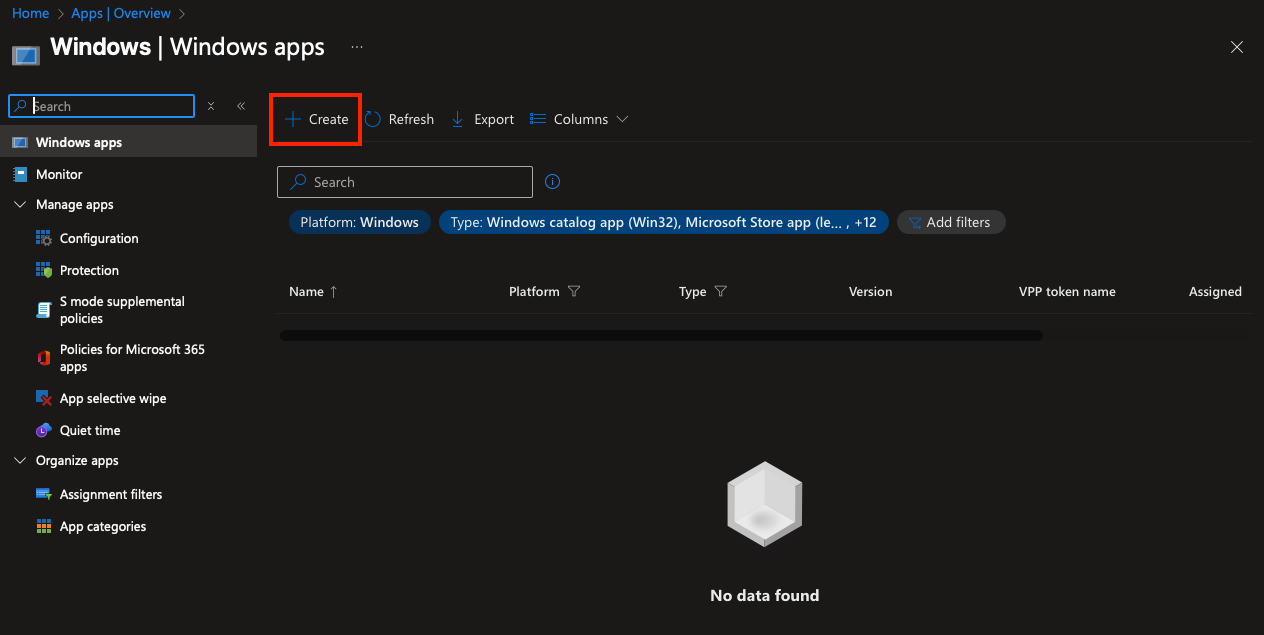
Click Create
Select Windows app (Win32)
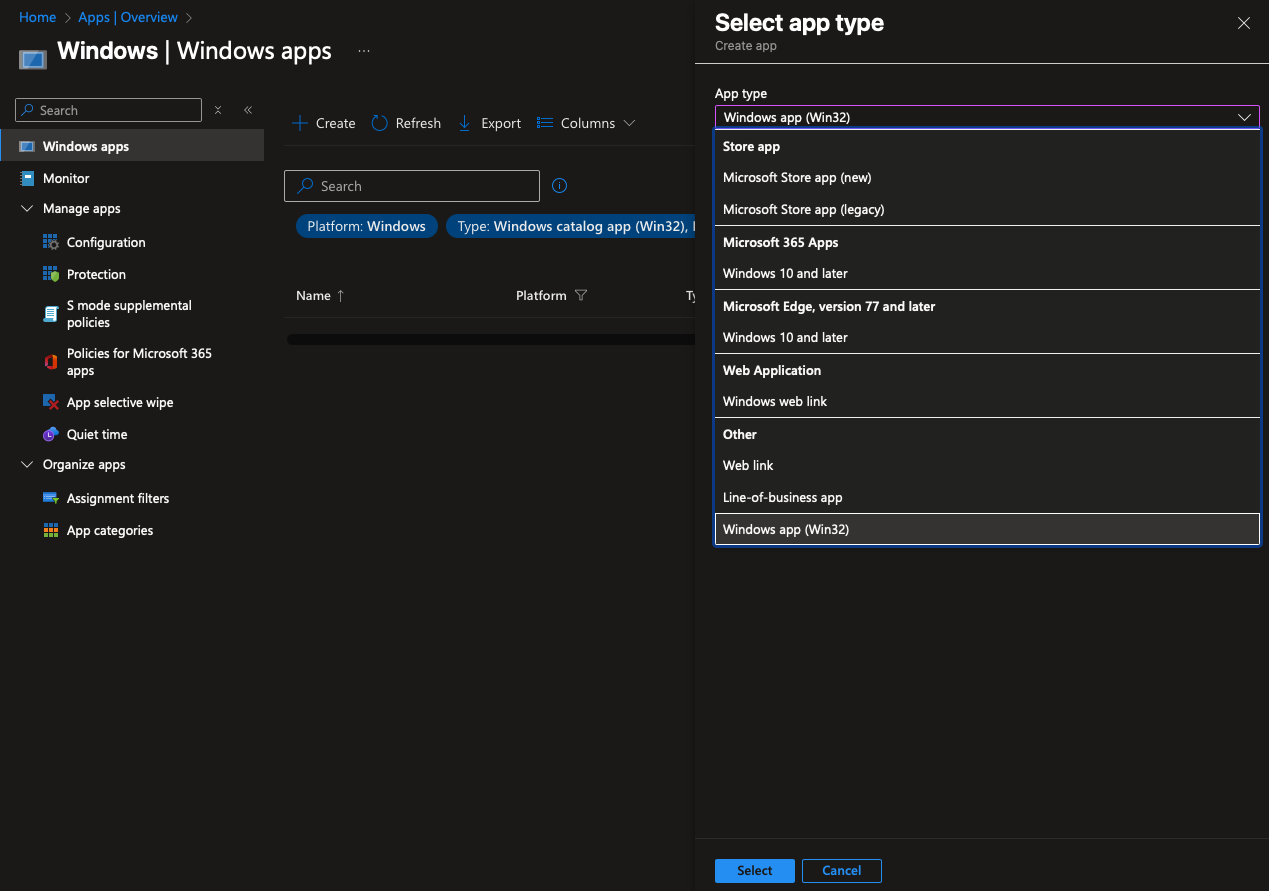
Click Select
Upload the Package
Upload the
.intunewinfile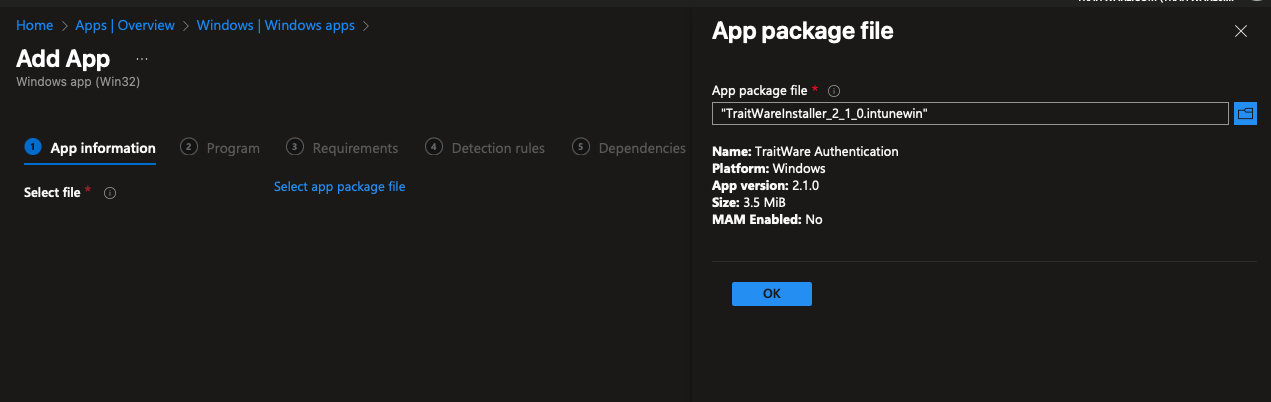 Click OK
Click Next
App Information
Enter Publisher (TraitWare, Inc.)
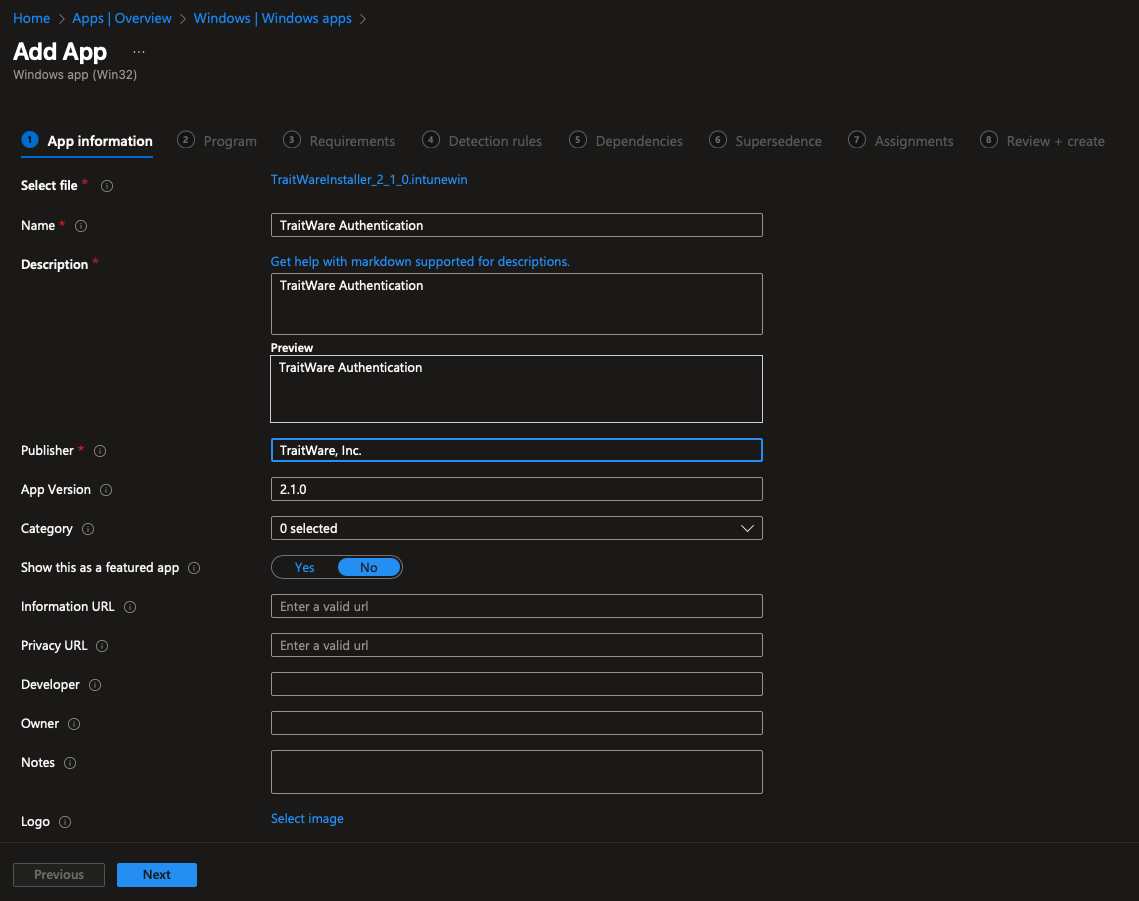
Click Next
Program Configuration
Paste your install command
Example:
msiexec /i "TraitWareInstaller_2_1_0.msi" /qn /norestart DEPLOYMENTKEY=<deployment-key> USERDOMAIN=local USEREMAIL=<user-email> USERNAME=<local-username> CREATELOCALUSER=true
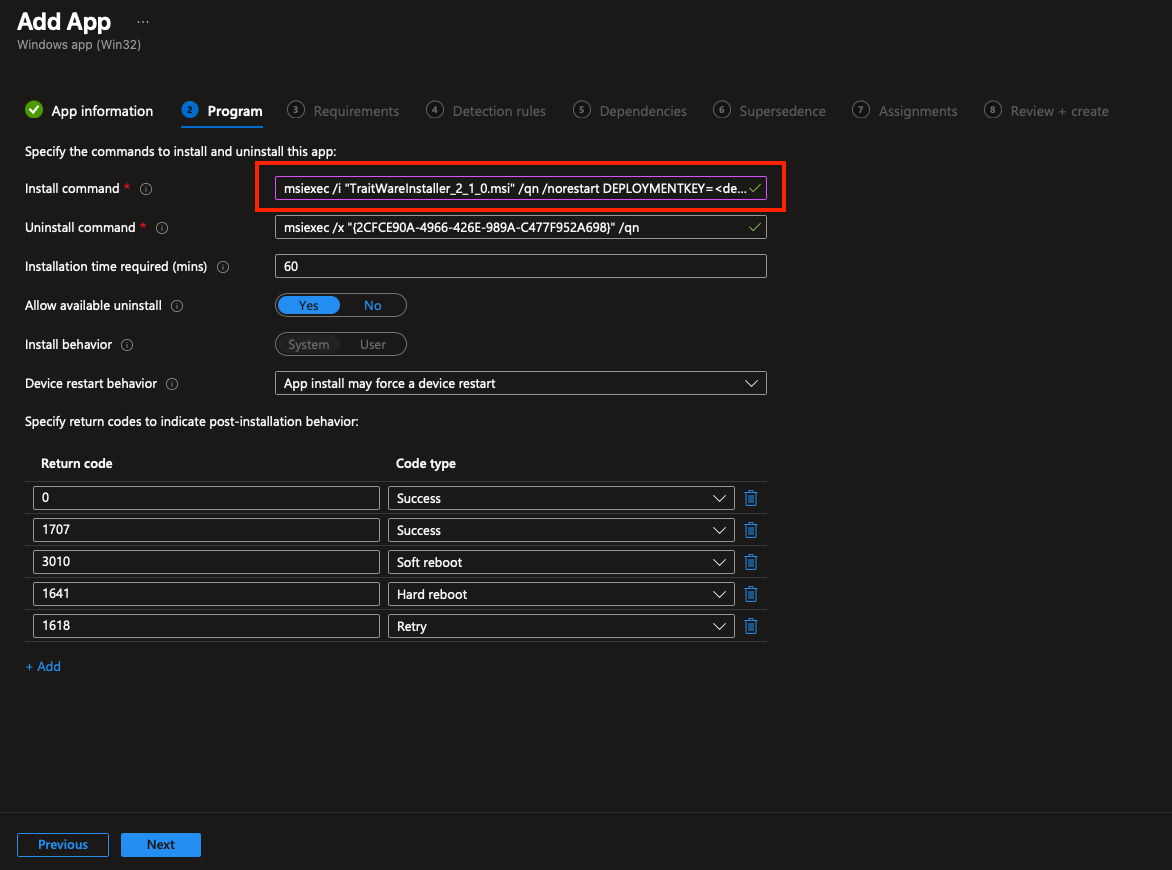
Click Next
Requirements
Set the minimum supported Windows version
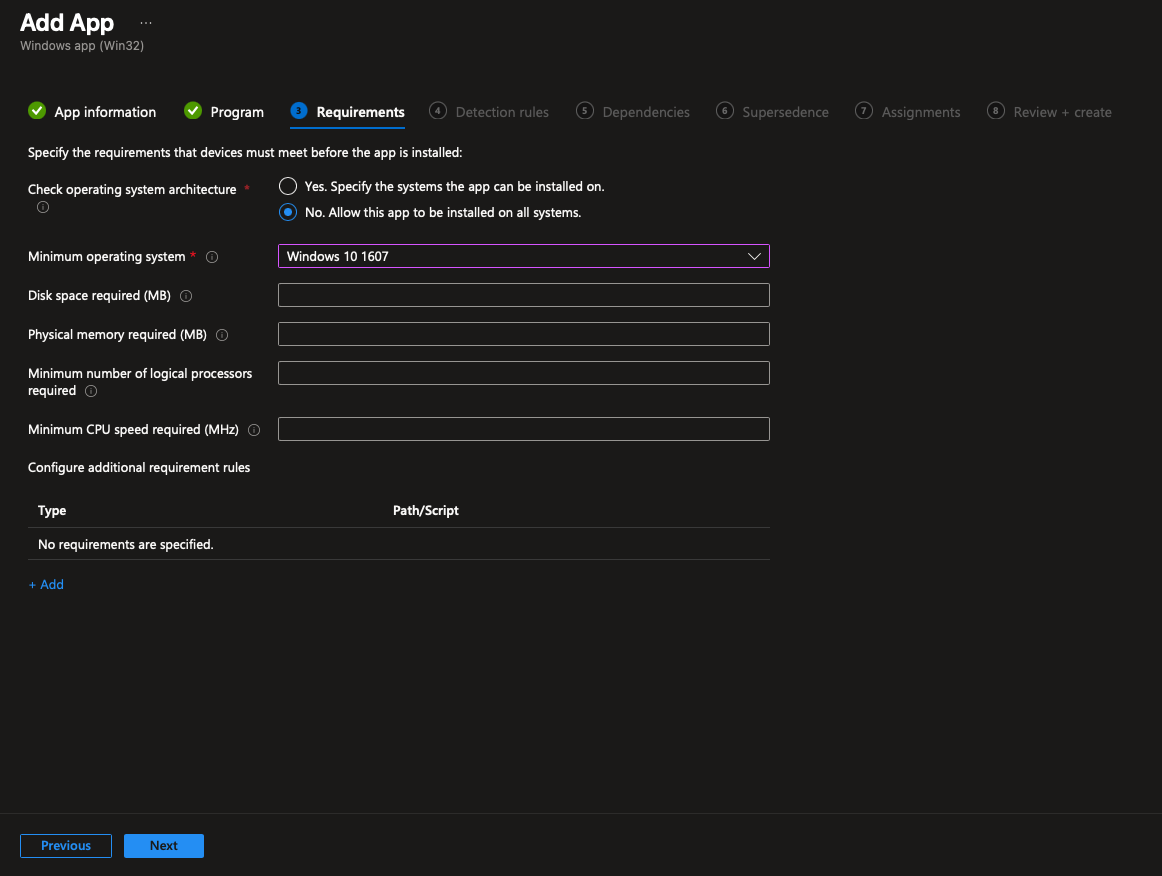
Click Next
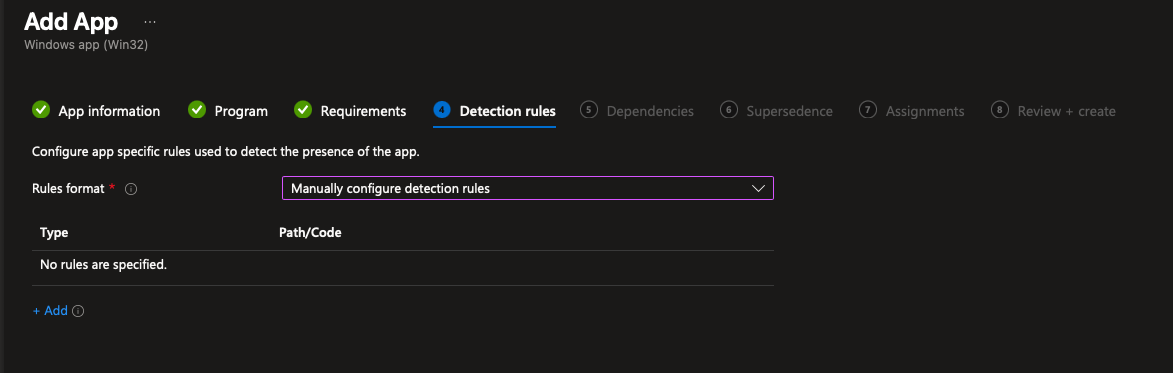
Detection Rules
Click Add
Choose Manually configure detection rules
Rule type: MSI
Use the automatically populated Product Code
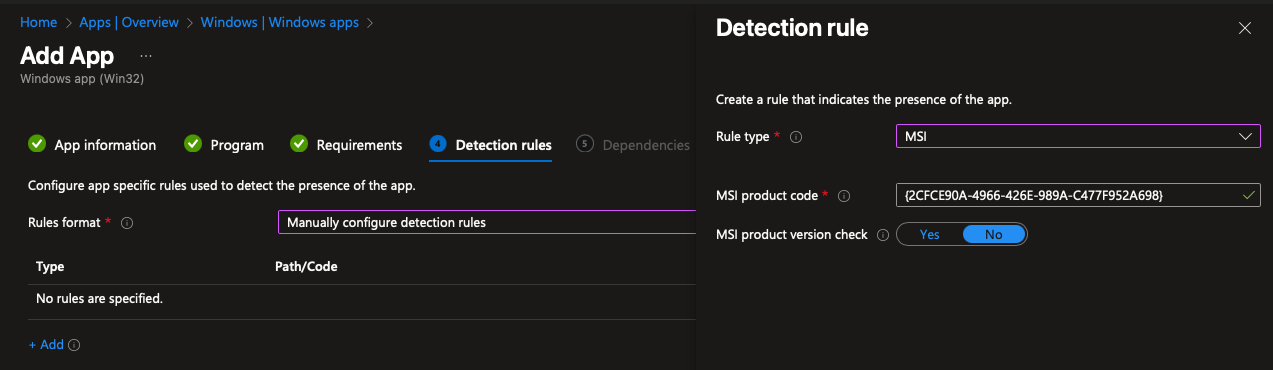
Click OK, then Next
Dependencies
Leave empty
Click Next
Supersedence
Leave empty
Click Next
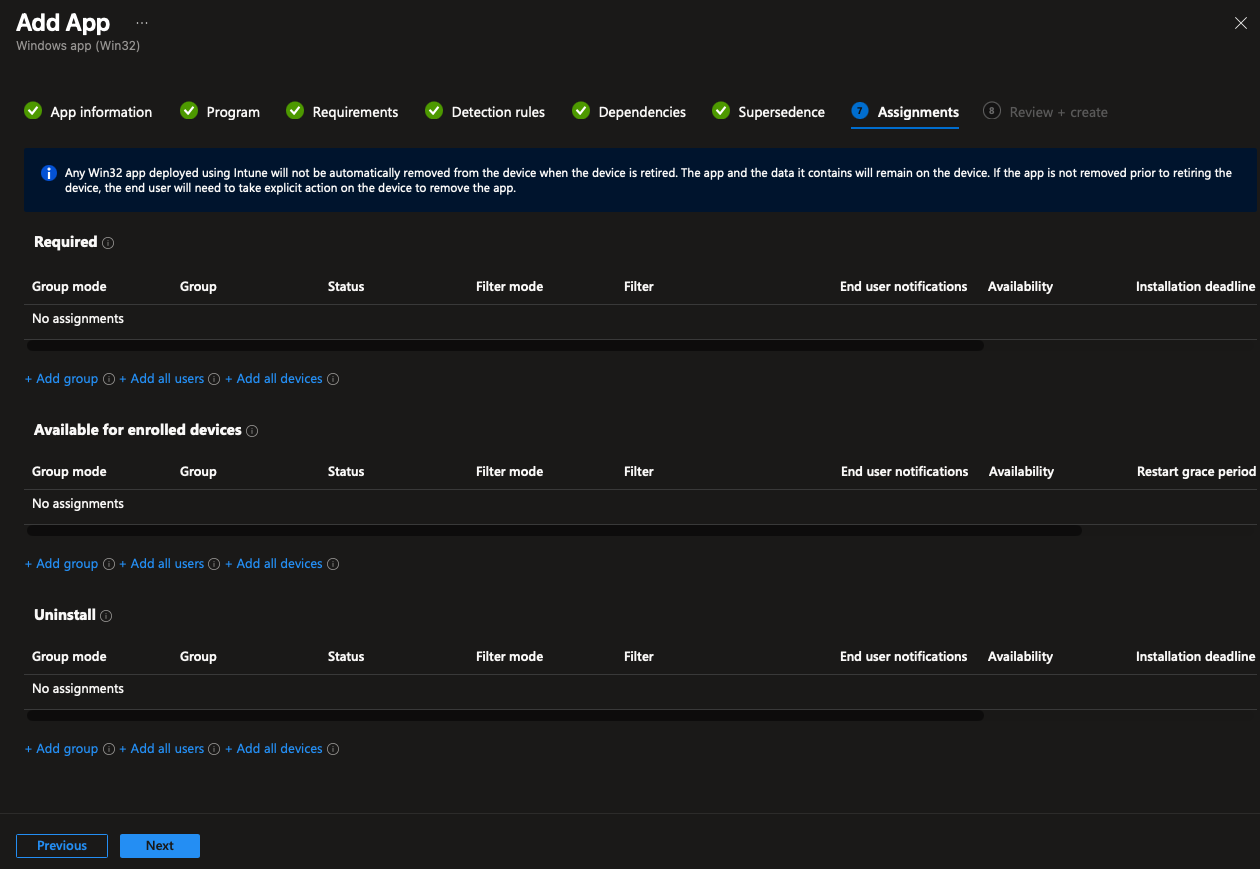
Assignments
Assign the app to users or devices
Example group added
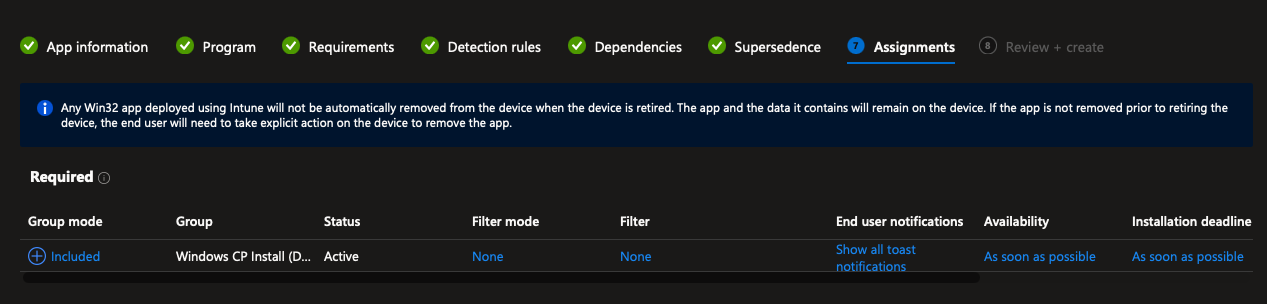
Click Next
Review & Create
Review configuration
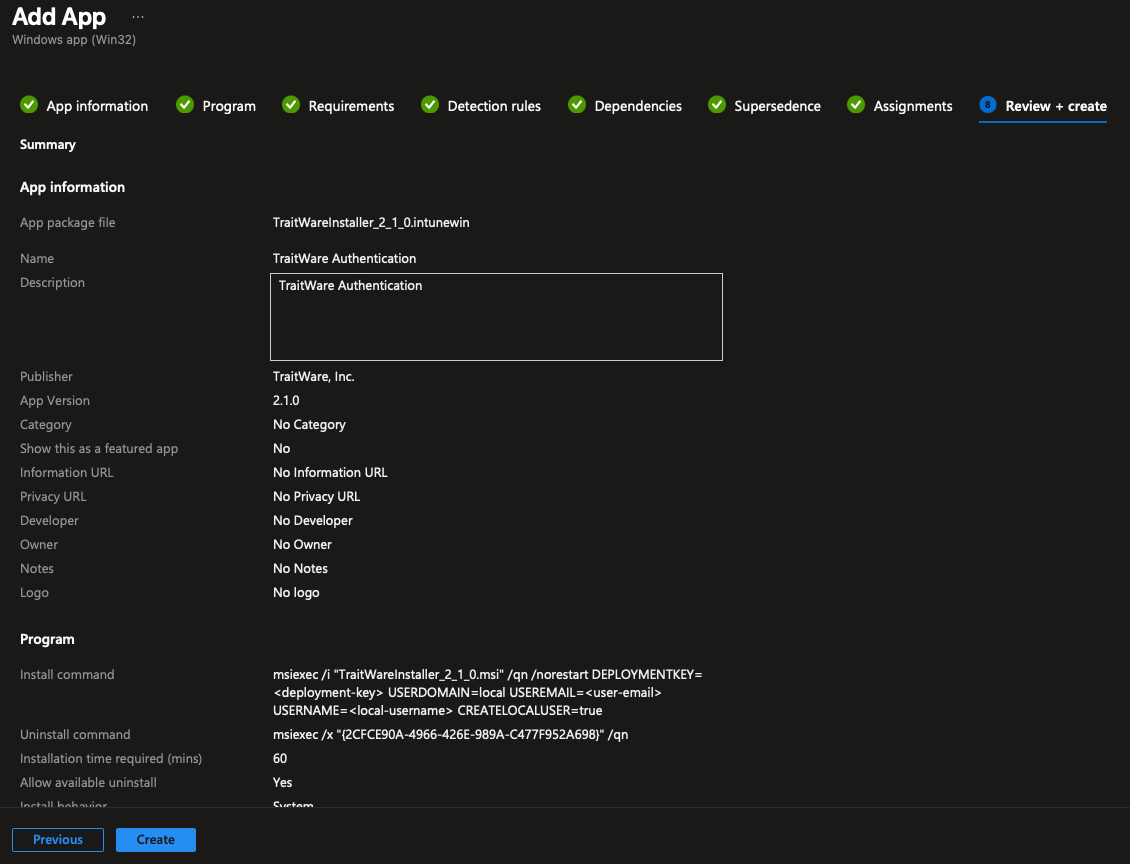
Click Create
The TraitWare Authentication app is set up. It may take a few moments for it to populate in the list while it is set up. Click refresh to see it.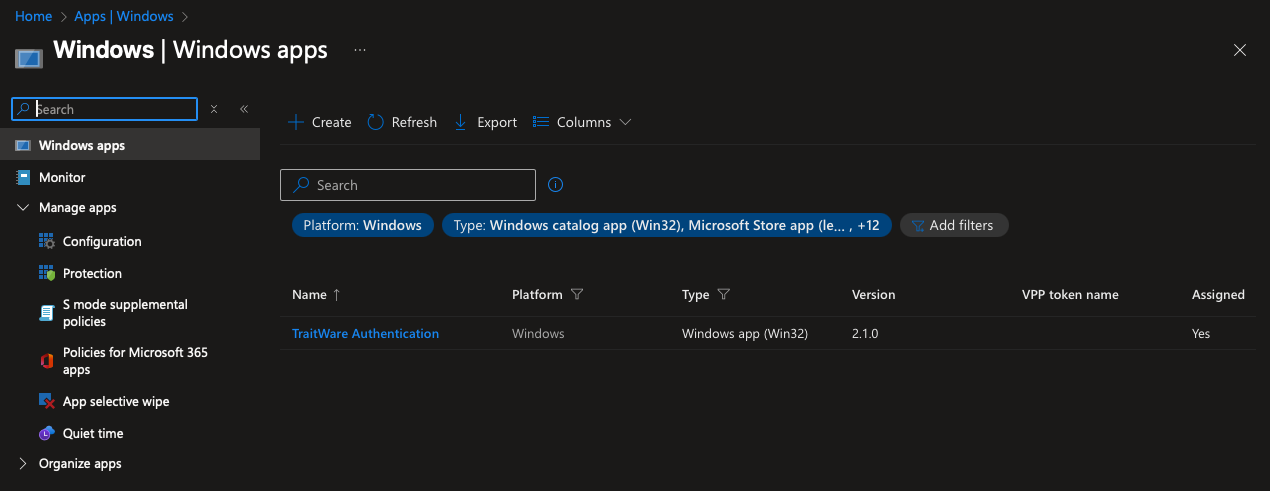
Notes
Always include
/norestartControl restarts using Intune policies
Ensure Entra ID user emails exactly match the Entra ID account
Deployment and Sync
Intune will automatically sync the TraitWare Endpoint agent to the selected machines and users from the above steps. The time it takes Intune to run a sync can vary depending on many factors. Often, a restart of the machine will initiate a sync. A sync can also be triggered manually by device or across multiple devices.
Bulk Device Sync
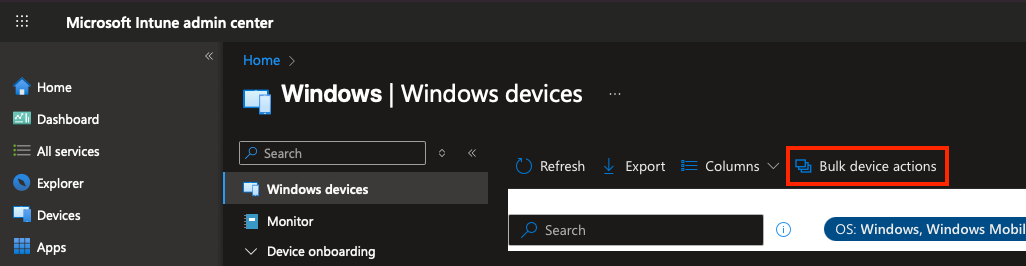
Navigate to Devices>Windows. Click Bulk device actions.
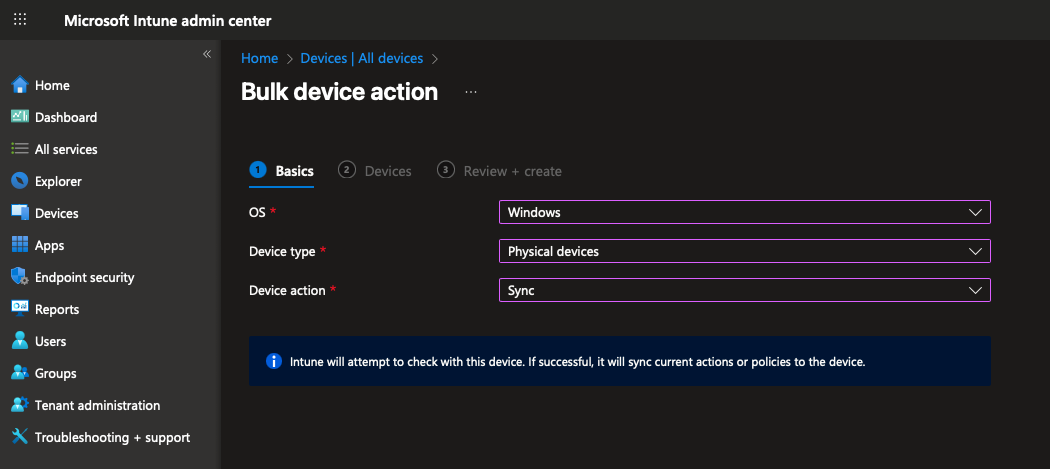
Select Windows, Physical devices, and Sync from the dropdown menus. Click Next at the bottom of the screen (not pictured).
Confirm the devices to sync. Click Next.
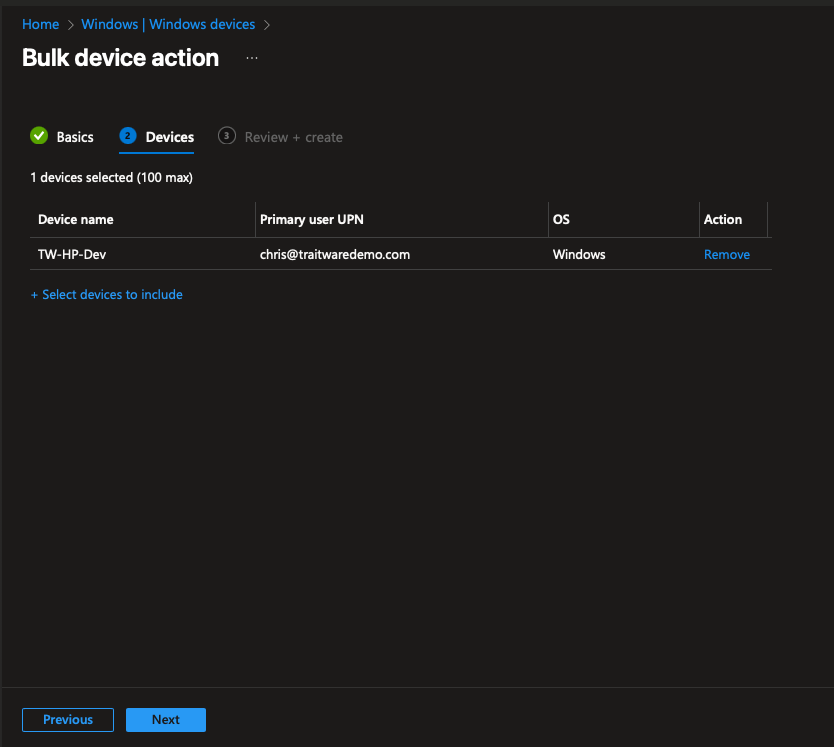
Review all settings and click Create.
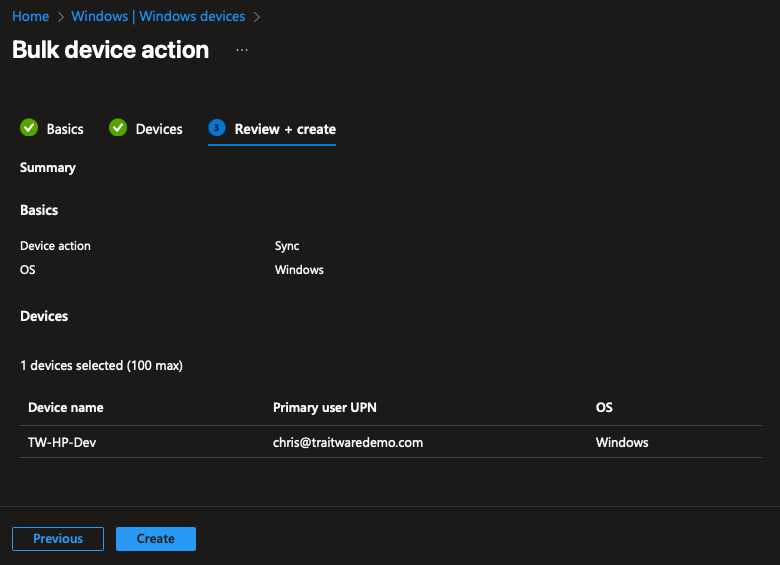
Note: it may take time to sync to the user devices. A restart of the devices may prompt the sync to happen faster.
Single Device Sync
Navigate to Devices and Windows. Select a single device from the list of devices to sync.
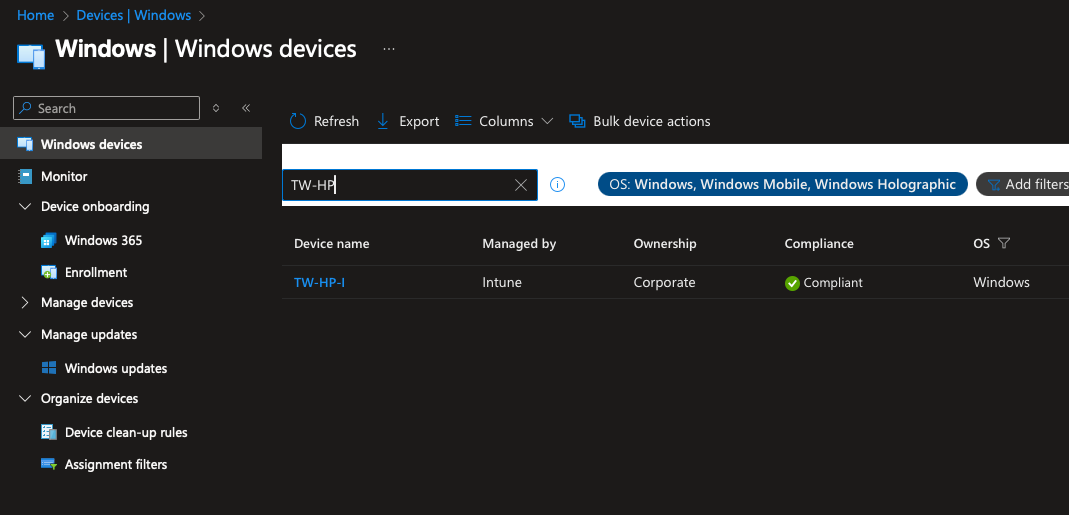
Select Sync.
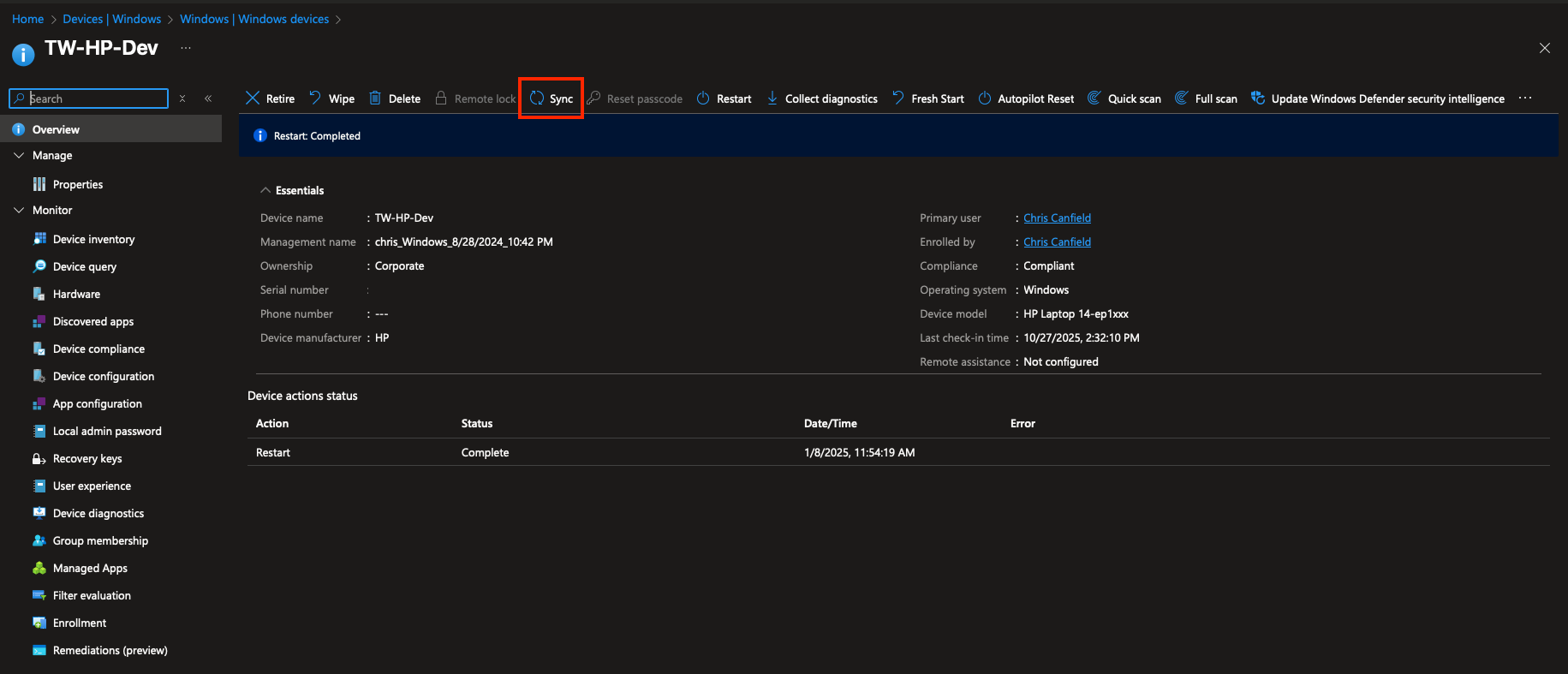
Select Yes to initiate the sync to the single device.
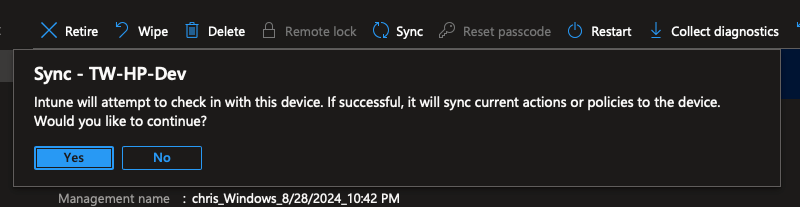
Note: it may take time to sync to the user device. A restart of the device may prompt the sync to happen faster.
For any questions, email support@traitware.com.
Was this article helpful?
That’s Great!
Thank you for your feedback
Sorry! We couldn't be helpful
Thank you for your feedback
Feedback sent
We appreciate your effort and will try to fix the article